Paying with Interac
Your USDC, paid
in three steps.
You pay for your purchases in Canadian dollars by Interac e-Transfer, from your bank's app. The price is shown before you pay.
- Autodeposit
- No security question
- Day and night
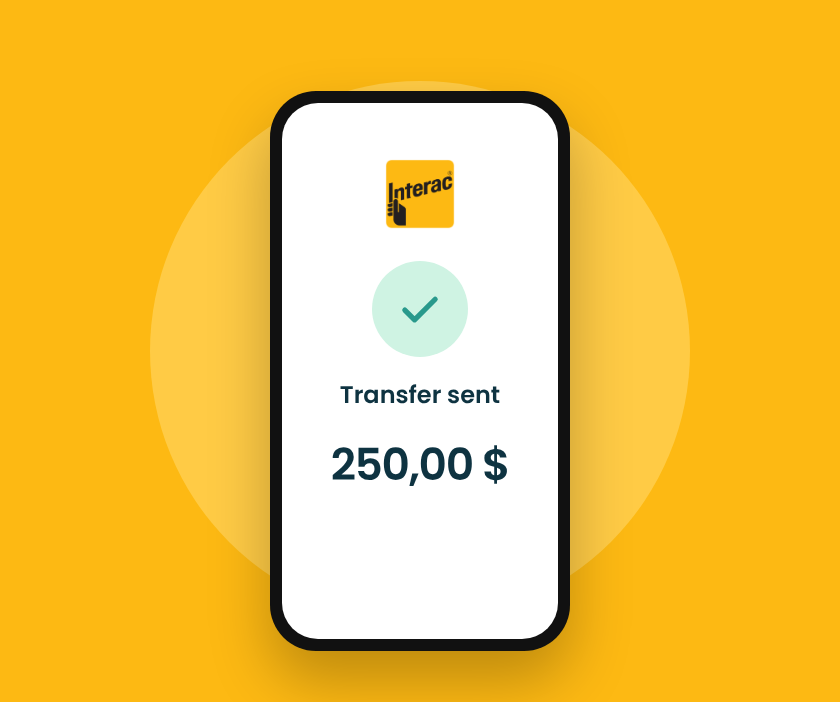
Why it's simple
Your transfer is read and checked automatically. If it follows the rules, your USDC go out on their own, day or night. If not, your money isn't lost: our team handles it by hand.
The steps
From your bank to your wallet.
The amount and the reference copy in one tap from your order.
1
Open your bank's app
Choose “Interac e-Transfer”, from an account in your name.
3
Add the reference
In the transfer's “Message” field, and nothing else.
OOB-7C3E91A2
4
Your USDC go out
The transfer is matched automatically, and your USDC are sent to your wallet.
Before you pay for a purchase
4
rules to follow.
Your transfer is read and checked automatically. If it follows these four rules, your USDC go out on their own, day or night. If not, it waits for a check by our team.
Recipient: [email protected]
Add this address as your Interac recipient, and only this one. You won't be asked for a security question.
The reference in the message
Copy your order reference (OOB- followed by 8 characters) into the transfer's “Message” field. One reference, nothing else.
The exact amount, to the cent
One transfer per order, for the amount shown. No rounding, no split payments, no several orders in one transfer.
A bank account in your name
The sender name on the transfer must match your Ooble account, as verified with your ID. For a business account: the company's bank account.
And to sell
You get paid
by Interac too.
- The transfer goes to your Ooble account email, and only there.
- If your bank asks for a security answer, it's shown in your sale's details.
- You see the dollar amount before you send your USDC.
The reference appears after you confirm the order, and in the order detail (Activity). It looks like OOB-3C62CEB6. In your bank, when sending the Interac transfer, paste it into the “Message” field (sometimes “Note” or “Message to recipient”). Don't add other text, and don't put another order's reference.
Get started